


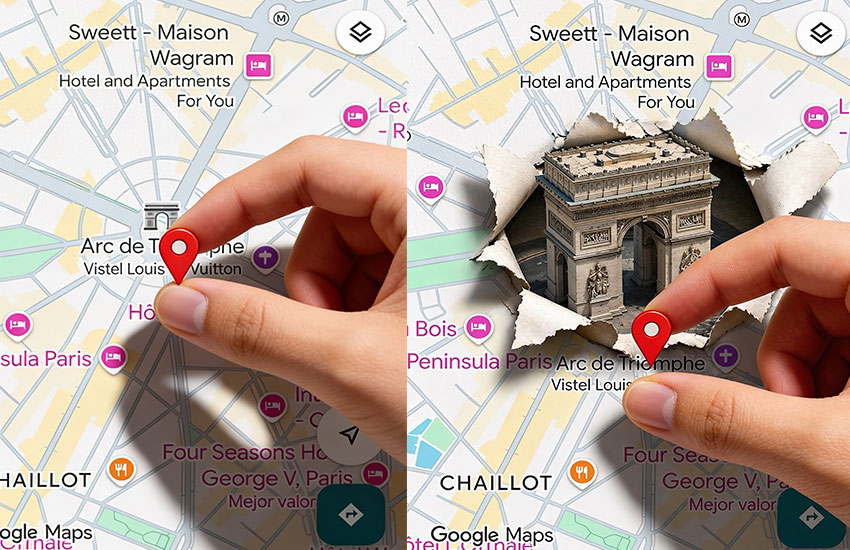
Está dando vueltas por las redes una transición en CapCut ideal para los viajeros. Consiste en un zoom a un Google Maps de un monumento del mundo que podés fusionar con una foto tuya en el lugar. Realmente se ve espectacular.
Esto fue hecho con el modelo DreaminaSeedance2.0. y ahora puedes usarlo directamente dentro de CapCut.
¿Querés saber cómo se hace? Quedate que te pasamos el paso a paso y los PROMPTS que tenés que usar para realizar este efecto con DreaminaSeedance2.0.
Paso a Paso como hacer la transición de capcut:
Paso 1: Obtené una captura de pantalla del monumento en Google Maps.

Paso 2: Usa la captura del Paso 1 para generar dos imágenes con IA (podés usar la función Laboratorio de IA de CapCut para crearlas).
Así tenés que acceder al Laboratorio de IA para crear imágenes en CapCut:

Subí la captura de Google y escribí el prompt para Imagen 1: A hand position a red pin slightly above (NOMBRE DEL MONUMENTO) icon without covering it. The pin must be short and a natural nude color. Only add the hand and pin with realistic lighting and contact shadow. Everything else must remain identical.

Ahora con la Imagen 1 usá este PROMPT para generar la Imagen 2: The map surface around the (NOMBRE DEL MONUMENTO) is torn open like paper, with curled and lifted edges revealing depth beneath. From the torn opening, a detailed 3D Triomphe Arc model emerges upward, perfectly aligned with its original location on the map. The paper edges should have realistic thickness, subtle shadows, and natural folds. Maintain all original map elements unchanged. The 3D Triomphe Arc should have high-detail textures, slightly stylized but believable, matching the perspective of the map.

Paso 3: Genera un video de transición entre la Imagen 1 y la Imagen 2 en CapCut utilizando el modelo Seedance2.0 con el siguiente PROMPT:
The hand in the first frame places the red pin onto the map, releases it, and exits the frame. The map then begins to crack and tear open around the pin like the second frame, with realistic paper edges and shadows. From the opening, a detailed 3D (NOMBRE DEL MONUMENTO) rises smoothly, aligned with the map. Seamless transition, cinematic, continuous shot, realistic lighting and depth.
Paso 4: Genera un video de transición entre la Imagen 2 y una foto real tuya con el monumento en CapCut utilizando el modelo Dreamina Seedance2.0. Asegúrate de que el rostro no sea completamente visible. Se recomienda usar gafas de sol (como en la imagen de referencia), mascarilla, o mostrar un perfil lateral o la vista desde atrás.
PROMPT para video 2: Start from the first frame: a 3D (NOMBRE DEL MONUMENTO) model scene. The camera performs a smooth rotating push-in toward (NOMBRE DEL MONUMENTO). During the rotation, the 3D (NOMBRE DEL MONUMENTO) gradually transforms to match the real (NOMBRE DEL MONUMENTO) in the second frame. By the end of the movement, the scene fully matches the second frame: a realistic environment where people and surrounding details naturally appear and blend in. Seamless transition from the first frame to the second frame, continuous rotating shot, no cuts, cinematic, realistic lighting and depth.
Listo, ya tenés los 2 videos. Ahora hay que unirlos.
Resultado: Uní el Video 1 y el Video 2 en CapCut, y aplica un efecto de aceleración al video combinado.
Y gualá!!!

Descuentos y herramientas para tu viaje
📱 Internet para tu viaje.
Contratá tu eSIM y obtené un descuento con el código MODOTURISTA
🩺 Asistencia al viajero.
Cotizá y obtené un descuento con el código MODOTURISTA
🚄 Transporte: tren, bus y avión para tus viajes.
Cotizalos aquí y obtené 10% OFF con el código HELLO2026 en tu primera compra
✈️ Salas VIP en aeropuertos.
Reservá tu acceso aquí
🎟️ Excursiones y tours.
Reservá actividades y experiencias aquí
💻 Lista de imprescindibles para tu viaje.
Comprá lo que necesites al mejor precio